The Digital Most Favored Nations (MFN) Elections feature enables you to quickly and digitally generate MFN forms from side letters, capture investor elections, and track fund obligations in Insight. This article will focus on showing you how to use the digital MFN tool to generate investor election forms. Rather than wait months for counsel to complete an MFN process, with little to no visibility along the way, you and your counsel can log into Insight to create forms from digital side letters in minutes.
| ℹ️ |
The dMFN feature requires the Premier tier of Insight for Funds for access. For more information about pricing and features of tiers for Insight for Funds, reach out to your Ontra Customer Success Manager. |
- When you first login to Insight you’ll arrive on the Funds Overview page
- Then you will select MFN Projects on the left hand side
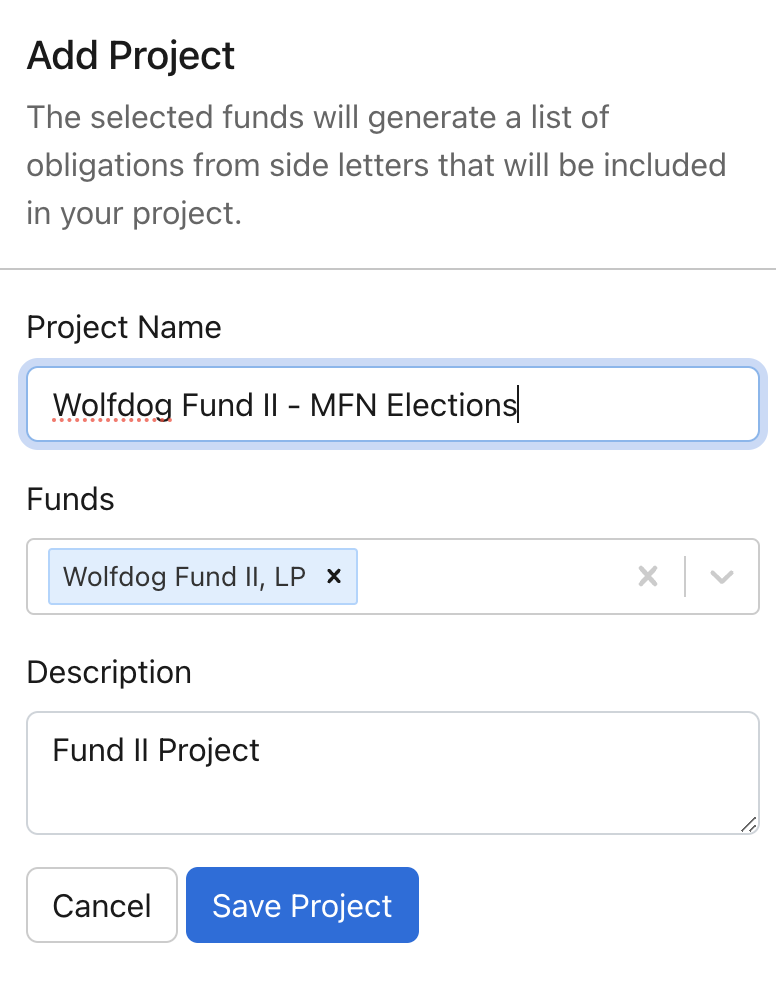
- Once you’ve arrived at the MFN dashboard you’re ready to create a new project for this fundraise. Select Add Project
- Once you have finished negotiating all the side letters for the fundraise, add the MFN project details:
- Add a project name
- Select the appropriate fund from the dropdown
- Add a quick description and then select Save Project to create the project
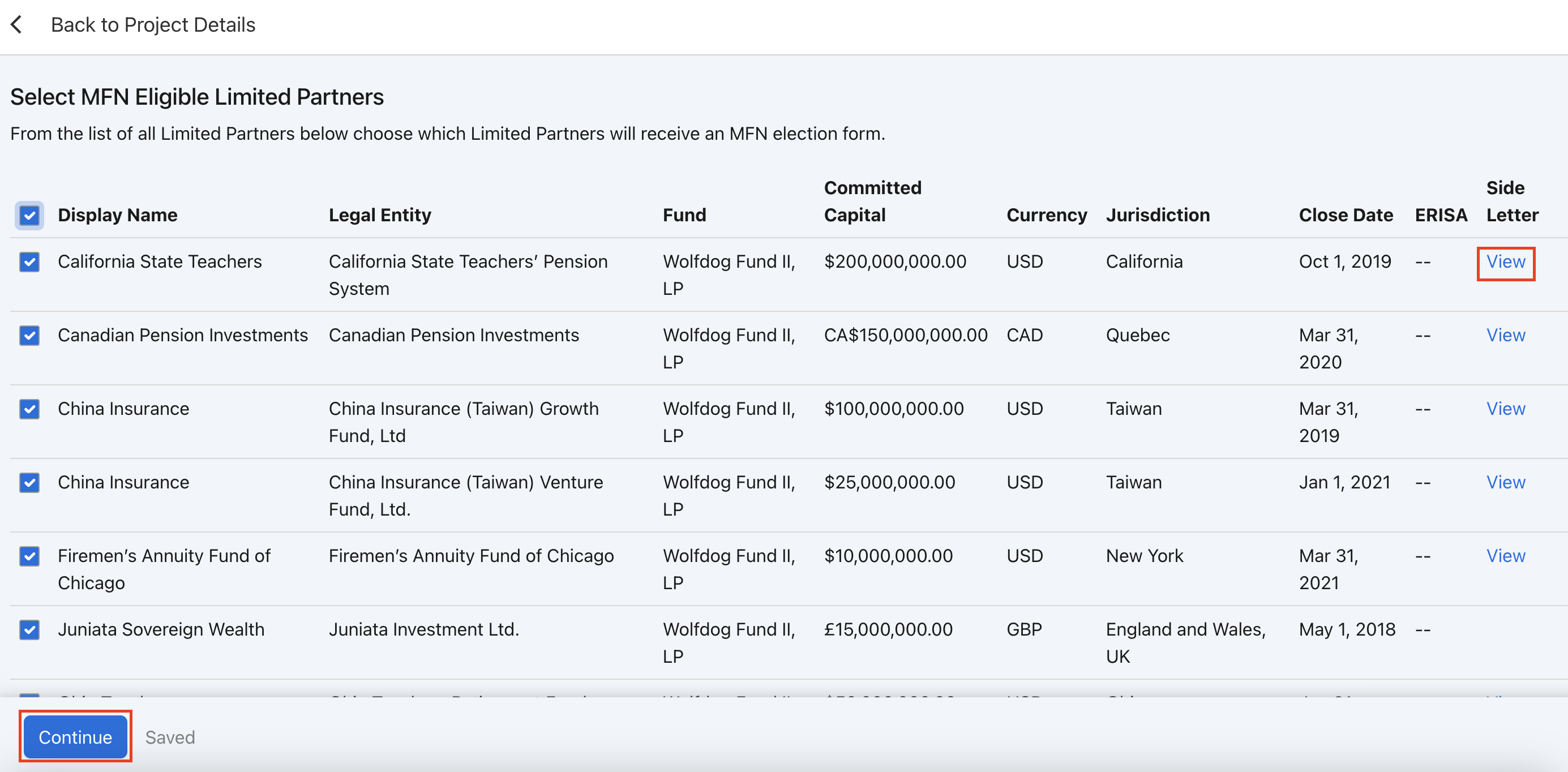
- Next check the box in the upper left to select all of the potential LPs who are eligible to receive the MFN election form. If you want to view a specific LP’s side letter, select View to read the MFN clause and double check that they’re eligible.
- Once you are comfortable with the selection, select Continue.
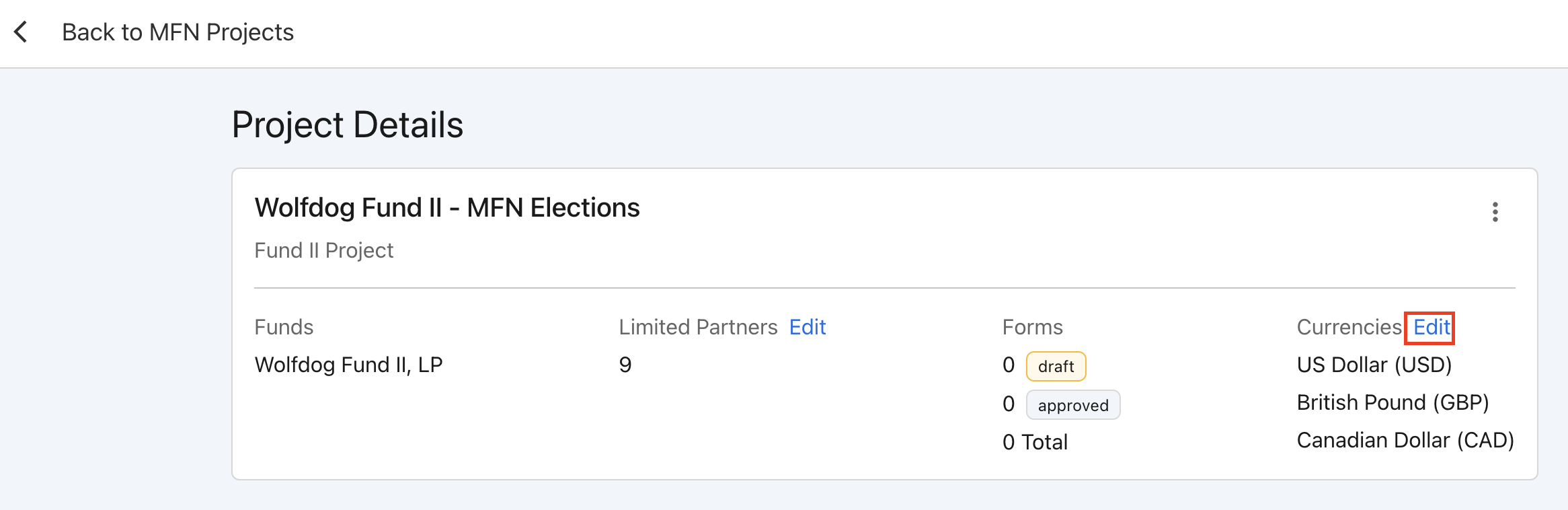
- Now that you have added some project details, you can see the fund you've selected, how many limited partners are eligible, and the last thing you will want to add is the currency conversion rates that cover the set of LPs you have selected.
- The reason we want to add conversion rates is that when creating election forms you want to be able to compare investors’ commitment amounts to the fund.
- Select Edit to add rates.
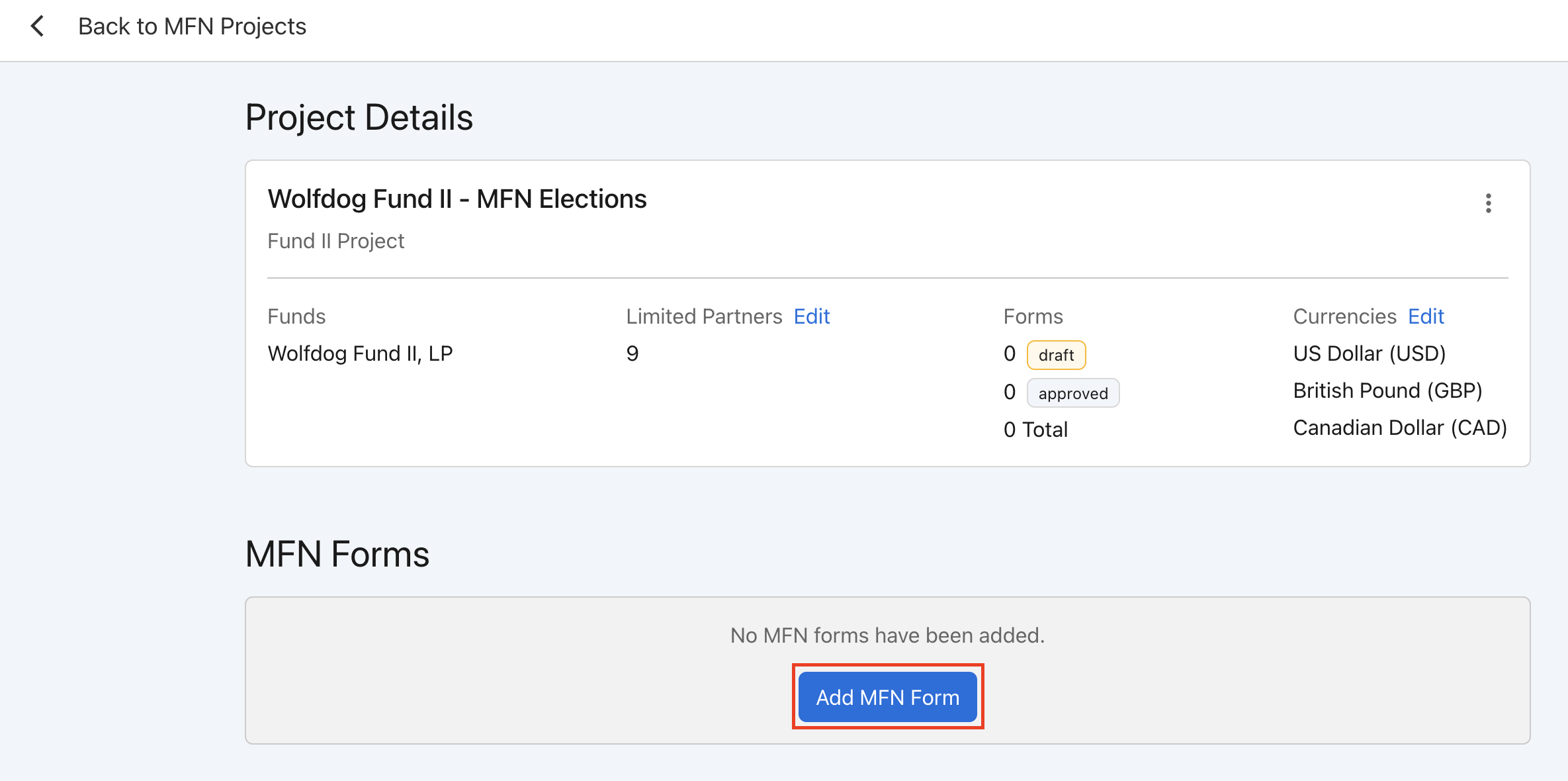
- Now you are ready to create the MFN forms. Select Create MFN Form and type in a form name before selecting Save & Next.
- Next you can select which LPs you will create MFN forms for by selecting the check box in the upper left corner or to the left of the individual LP name. Once you have selected the LPs, select Next.
- You will have the opportunity to add a cover letter, which investors will see at the beginning of each form. Once added, select Save & Next.
- In this next step, you can see all of the obligations tied to the side letters that you have digitized in Insight. You will need to assign a status to each obligation, of which there are 4 options:
- General Electability
- Limited Electability
- Excluded from the form entirely, or
- Non-Electable meaning its included and visible in the form for disclosure purposes only
- On this page, you can use the obligation Category, Investor, and Fund drop-downs to filter for select obligations before assigning them a status.
- To do this, start by using the checkbox in the upper left corner to select all obligations. From the Actions dropdown, select the electability you would like to assign to the obligations.
- Tip: You can always use any of the filters to change an obligations electability. Simply apply the filter, and then use the Actions dropdown to change the status.
-
If you need to redact any sensitive information from obligations that you’re going to include in election forms, you can select the Redaction Mode toggle in the upper right corner. Highlight the text you want to redact (such as an LP name, country, or other information) and select either Redact or Hide to add the redaction.
-
You can also select one of the obligations as a base by selecting the kebab menu and choosing the "Select Base" option.
- This will generate redlines inside the Compendium, if obligations are identical, they will appear as “Same as base”, if they deviate from the base the Compendium will show redlined text for any deviations.
- Additionally, you can assign a Commitment Threshold based on the LPs committed capital amount. If for any reason you want to override the commitment threshold, you can always override the capital commitment amount by editing the Aggregate Threshold column.
- Now you have the option to filter obligations by each investor’s aggregate commitment amount. If you enable this filter, you can choose whether you’d like to make elections Non-Electable or Excluded in the event that an investor’s commitment amount is below the obligation’s threshold. Note that you can alternatively choose to disable capital commitment filtering if your MFN clause is not determined by commitment size. Once this is done, you can select Save & Next.
- Now you have generated all of the MFN election forms in seconds based on the form criteria and filters you have selected. You can Preview the forms at this stage and see what the LP would see when they receive the form. If there’s something you’d like to change, you have the ability to easily edit each form as well by selecting Edit.
- Select Next and review any final form details before Approving the forms. This will lead you back to the main dashboard where you can download and send the forms to investors.
-
Select Send & Track Forms and then use the checkbox to Select All, select the Actions button to Download all MFN forms or just select forms.
You can also select the Download Compendium button to download a fully formatted Word version of the MFN Compendium for a specific project. This download will contain: a table of contents, an index of investors, all MFN elections and side-letter provisions grouped by provision, redlined variations to show how provisions differ across investors.
From there, you are all set to distribute election forms to investors. Your LPs will make their selections, and Ontra will reflect those back in Insight, making sure that any new obligations are tagged appropriately so you can track and comply with them over the lifetime of the fund.
| ℹ️ | To learn more about distributing dMFN forms, please see our article Digital MFN Elections | GPs |