
Edit One or More Task(s)/Subtask(s) Due Date(s)
- Log into Insight using your username and password, which will bring you to the Funds Dashboard page
- Click the number under the Obligations section to navigate to the Obligations page
- Click on the Tasks or Subtasks tab before using the search bar, filters, or due date search to find the task(s)/subtask(s) you want to modify
- Select the checkbox next to the task(s)/subtask(s) you want to modify, and then from the Bulk Actions drop-down, click Edit Due Date.
- Select a new due date for the selected task(s)/subtask(s), and then use the radio button to choose whether you’d like to apply the date change to This Instance or This and Future Instances for recurring tasks before clicking Save.
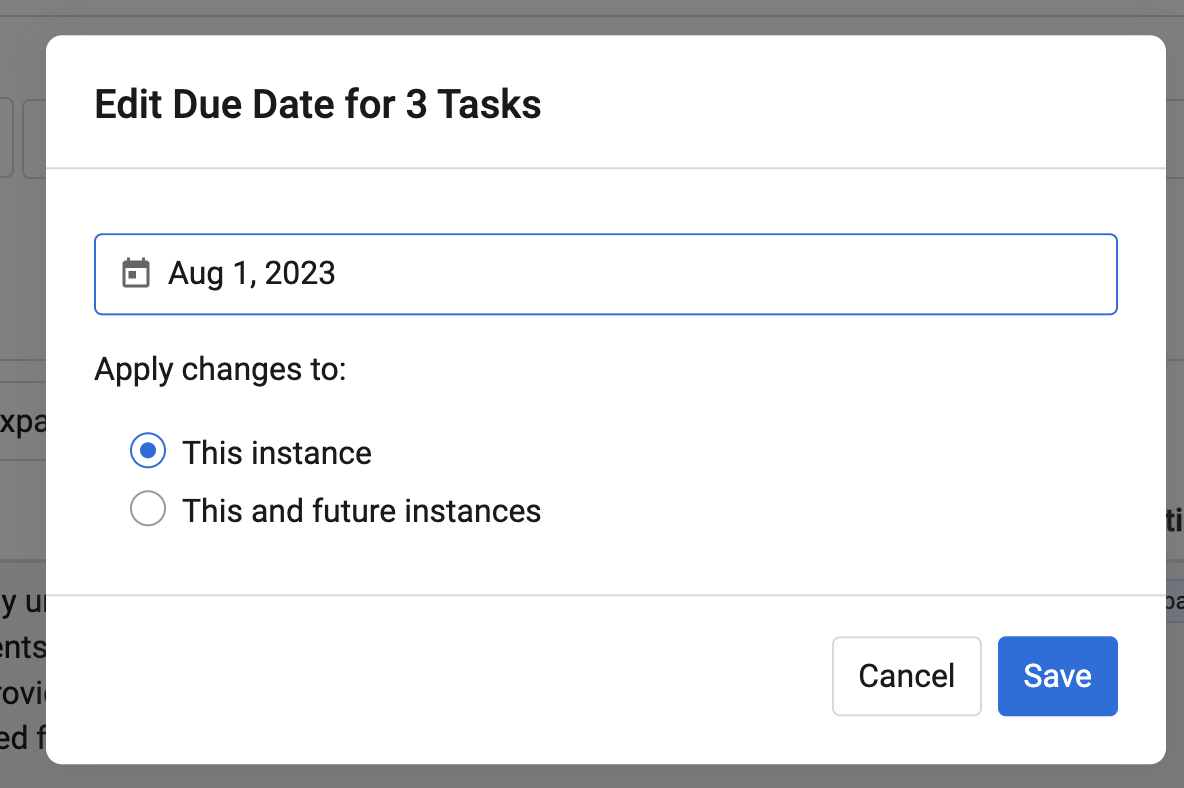
Note: If you choose to apply a new date to “This instance” or the selected task instance only, the date change will only apply to the selected task. If you choose to apply a new date to “This and future instances,” the due date will be moved forward or backward by the same number of days for the selected task and tasks in future quarters. The exception to this rule is if you choose to move a task’s due date to the last day of the month for a numerical date that does not exist for all months (i.e. the 29th, 30th, 31st). In this case, future task due dates will automatically be moved to the last numerical day that exists for the respective month.
See examples of the date change functionality works below:
Example 1: If you move March 2 to March 1 and apply that change to "this and future instances" then future instances will become April 1 and May 1.
Example 2: If you move March 2 to March 3 and apply that change to "this and future instances" then future instances will become April 3 and May 3.
The following is true for a task set that includes January 15, February 15, and March 15.
Example 3: If you move January 15 to the last day of the month for January (the 31st), then future task due dates will be moved to February 28th and March 31st.
Edit All Details for an Individual Task or Subtask
- Log into Insight using your username and password, which will bring you to the Funds Dashboard page
- Click the number under the Obligations section to navigate to the Obligations page
- Click on the Tasks or Subtasks tab before using the search bar, filters, or due date search to find the task(s)/subtask(s) you want to modify
- Click into the row of the task/subtask you want to modify
- For tasks, click the kebab menu next to Task Details and select the Edit option
- Make updates to the Task Owner, Task Name, Task Description, and/or Due Date and then use the radio button to choose whether you’d like to apply the date change to This Instance or This and Future Instances before clicking Save.
- For subtasks, navigate to the Obligations Dashboard and select the tasks you would like to edit, then click the Bulk Actions button to make the changes
- Select Assign Owner to select a new owner and click Assign
- Select Edit Due Date to update the due date of the subtasks and then use the radio button to choose whether you’d like to apply the date change to This Instance or This and Future Instances before clicking Save.
- Select Assign Owner to select a new owner and click Assign
Note: For completed tasks, you cannot make any further edits unless you reopen the task. To do so, click into the relevant task and select Open within the Task Status section.
Comments
0 comments
Please sign in to leave a comment.