
You can configure Insight to automatically send emails to ensure you and your team members are notified when tasks are assigned and coming due.
Types of email notifications
Type | Details |
| Task Assignment Digest | Sent when a Task is assigned to a new owner, on the day of assignment at 6pm (local time) |
| Coming Due Digest | Sent weekly on Mondays at 9am (local time) containing a list of all overdue and upcoming Tasks, exact notification preferences can be managed following the steps below. 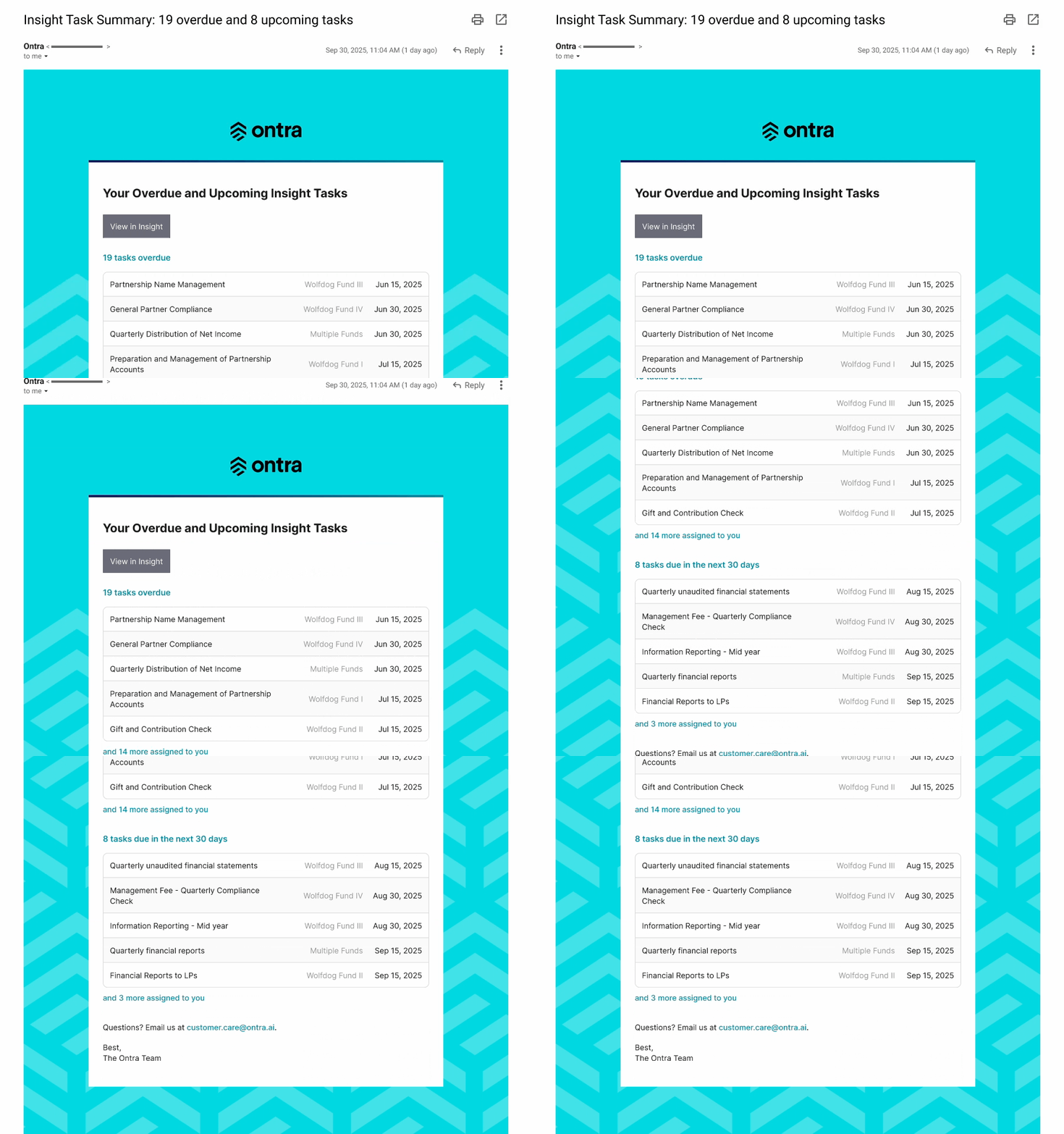 |
Manage notification preferences
As an Admin for yourself
Admins can view all overdue and upcoming tasks assigned to them, assigned to others, or unassigned.
- Navigate to Admin and open the My Profile page
- Under the Accounts section, click the ⋮ icon
- Click Edit
- Choose whether to...
- Receive digests for your tasks
- Receive digests for others' task and use the drop-down to select who
- Receive digests for unassigned tasks
- When finished, click Save
As an Admin on behalf of a user
Admins can manage task notification settings on behalf of users.
- Navigate to Admin and open the User Management page
- Click the applicable user's name to open their User Details page
- Click the ⋮ icon and then Manage Notification Preferences
- Choose whether to...
- Receive digests for their own tasks
- Receive digests for others' task and use the drop-down to select who
- Receive digests for unassigned tasks
- When finished, click Save
As a Standard User
- Navigate to Admin and open the My Profile page
- Under the Accounts section, click the ⋮ icon
- Click Edit
- Choose whether to...
- Receive digests for your tasks
- Receive digests for others' task and use the drop-down to select who
- Receive digests for unassigned tasks
- When finished, click Save
Comments
0 comments
Please sign in to leave a comment.